Full-code apps quickstart
This guide walks you through building your first full-code app. We'll create a React app from the Windmill UI, explore the scaffolded code, add a second backend runnable, and wire both into a polished frontend.
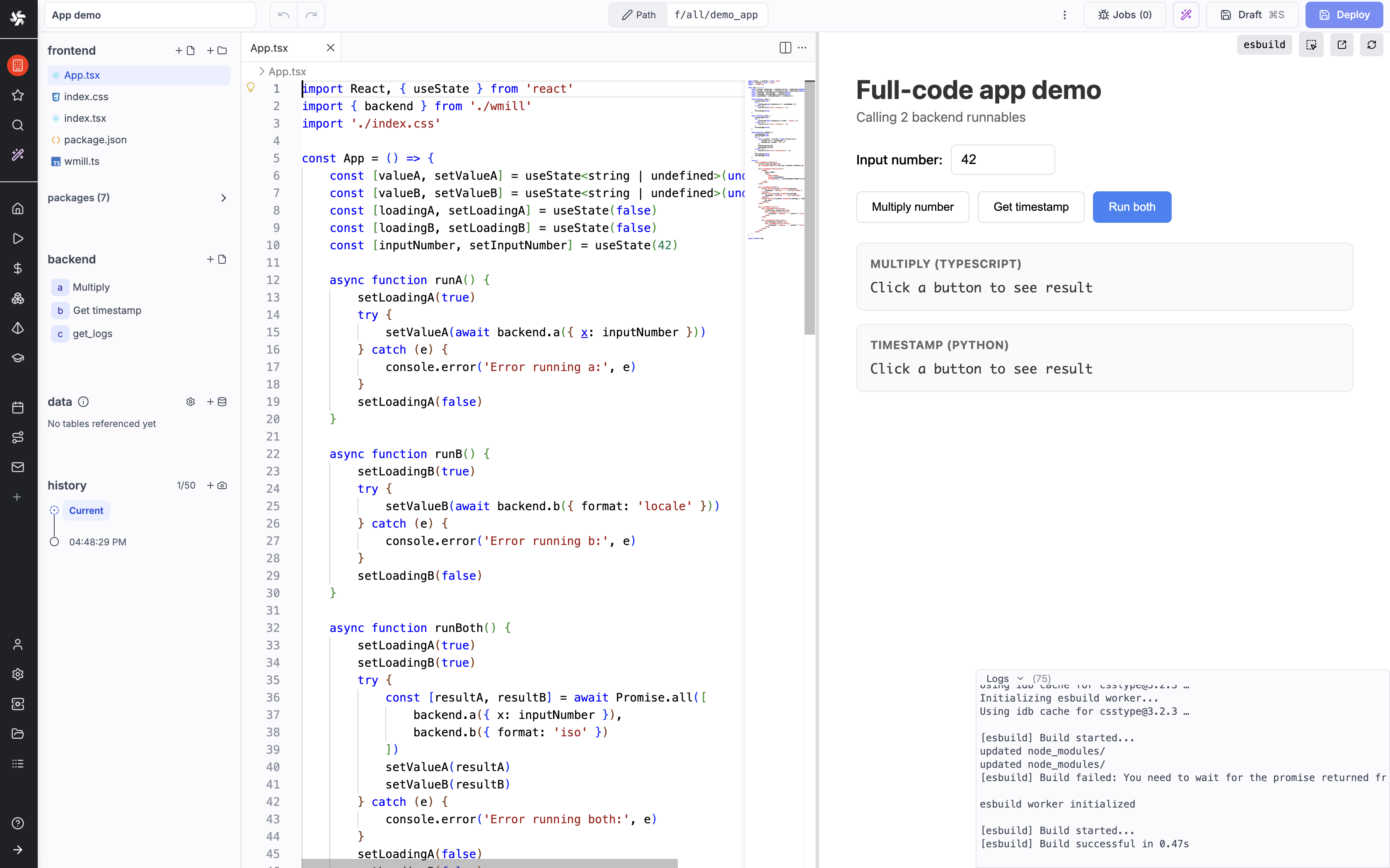
Full-code apps give you complete control over your UI with React or Svelte, while Windmill handles backend execution, permissions and deployment.
| Full-code apps | Low-code apps | |
|---|---|---|
| UI | Custom React/Svelte components | Drag-and-drop component library |
| Frontend logic | Full framework features (hooks, stores, routing) | Connecting components + inline scripts |
| Backend | Scripts in backend/ folder, any language | Runnables panel, inline or workspace scripts |
| Local dev | wmill app dev with hot reload | Web-based editor only |
| Best for | Custom UIs, complex interactions, existing codebases | Quick dashboards, forms, CRUD interfaces |
Step 1: Create the app
From the platform
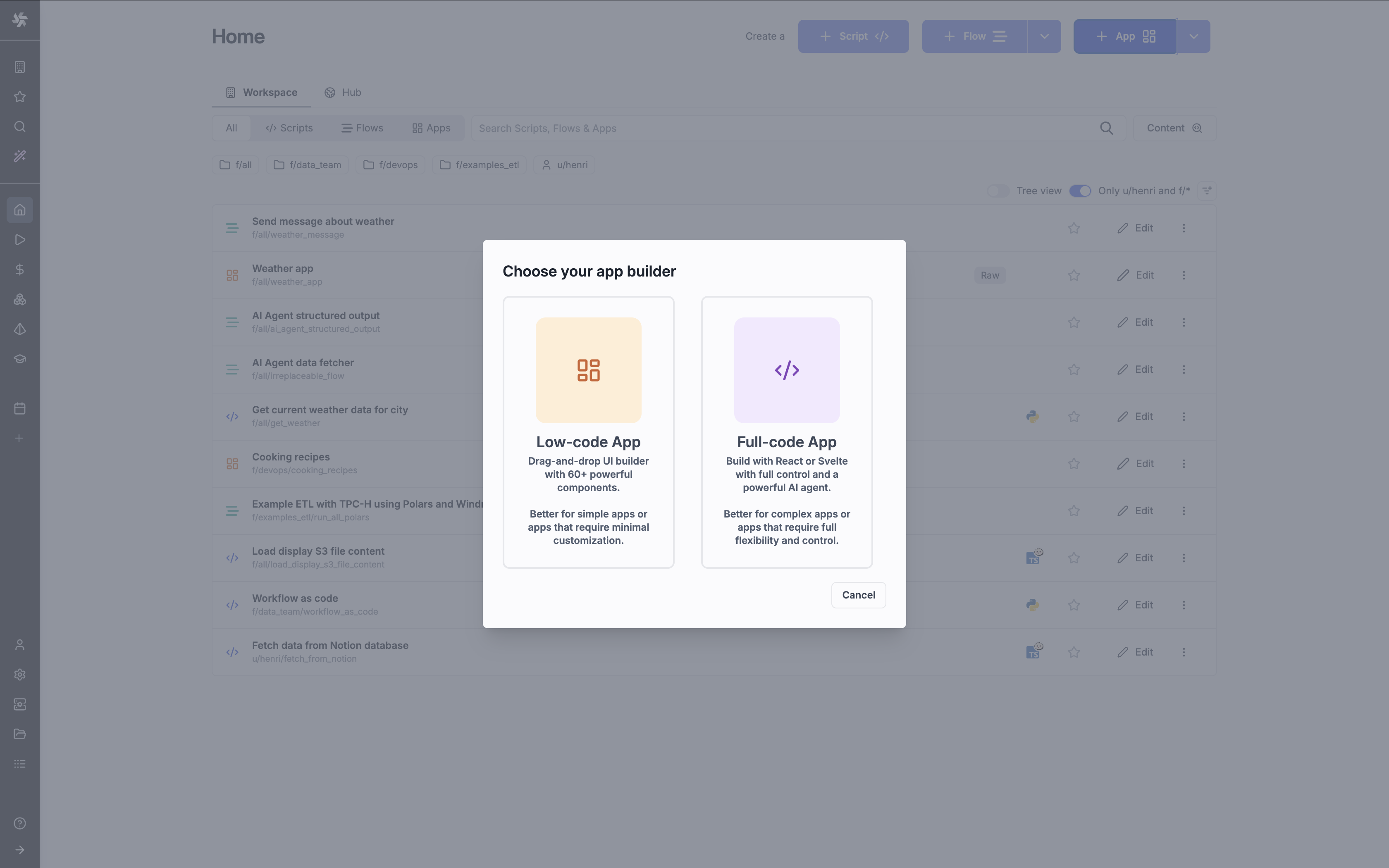
From your Windmill workspace, click + App and select Full-code App.
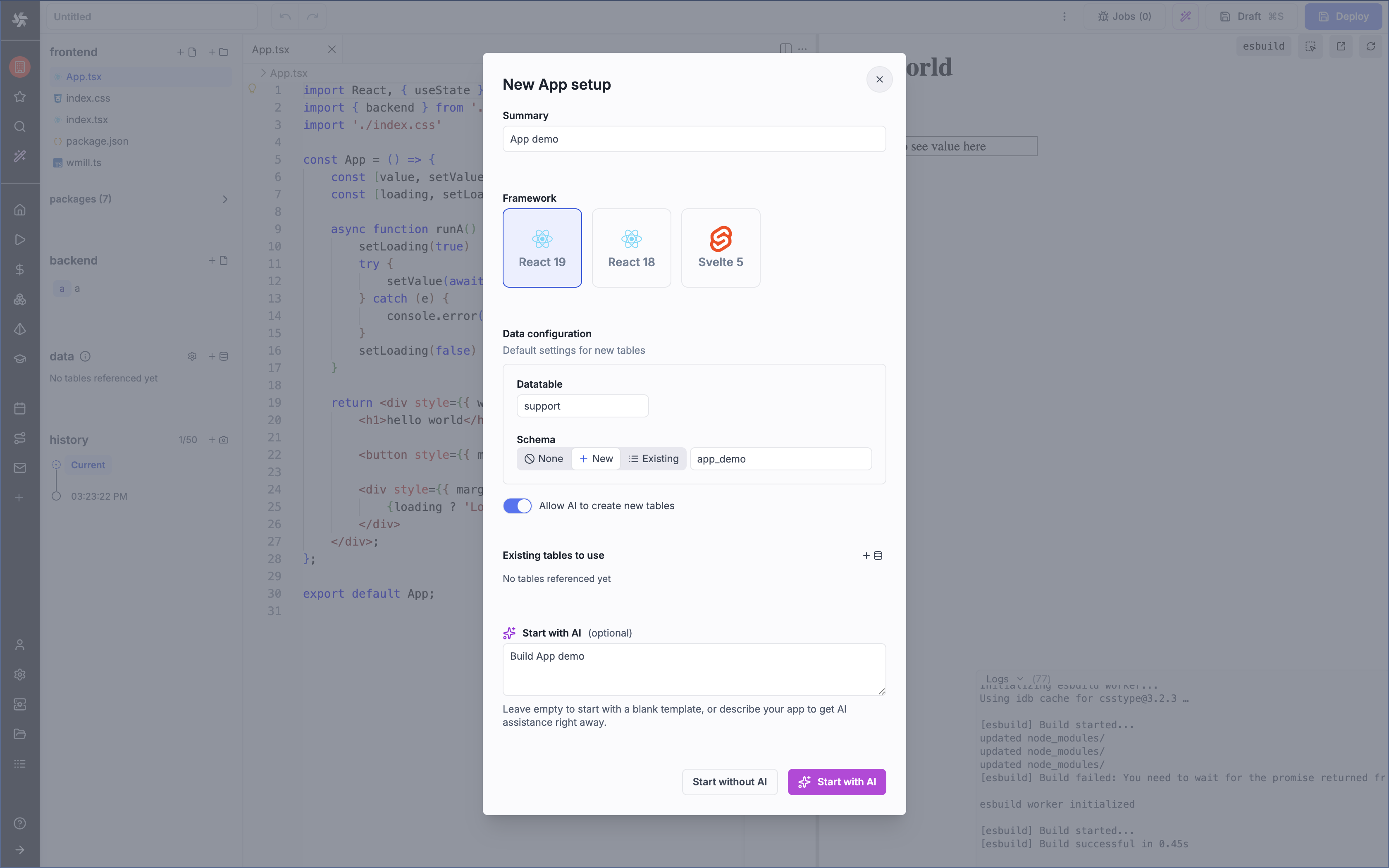
In the setup dialog:
- Pick a framework (React or Svelte 5), for the example we'll use React 19
- Choose a Data configuration. Here we'll use a new datatable. It's not required for apps to have a datatable, it will be used only in a dedicated section of the quickstart.
- Start the app 'without AI'. Or just enter a prompt and start with AI, and you're done for the quickstart :)
The UI editor opens with a scaffolded project.
From the CLI
You can do the same from the Windmill CLI:
wmill app new
The wizard prompts for the same choices. Then install dependencies and start the dev server:
cd f/folder/my_app.raw_app
npm install
wmill app dev
This starts a local server with hot reload at http://localhost:4000.
Step 2: Explore the scaffolded project
The created app has this structure:
f/folder/my_app.raw_app/
├── raw_app.yaml          # App metadata and configuration
├── package.json          # Frontend dependencies
├── index.tsx             # Entry point (renders App)
├── App.tsx               # Main React component
├── index.css             # Styles
└── backend/
    ├── a.yaml            # Sample backend runnable config
    └── a.ts              # Sample backend runnable code
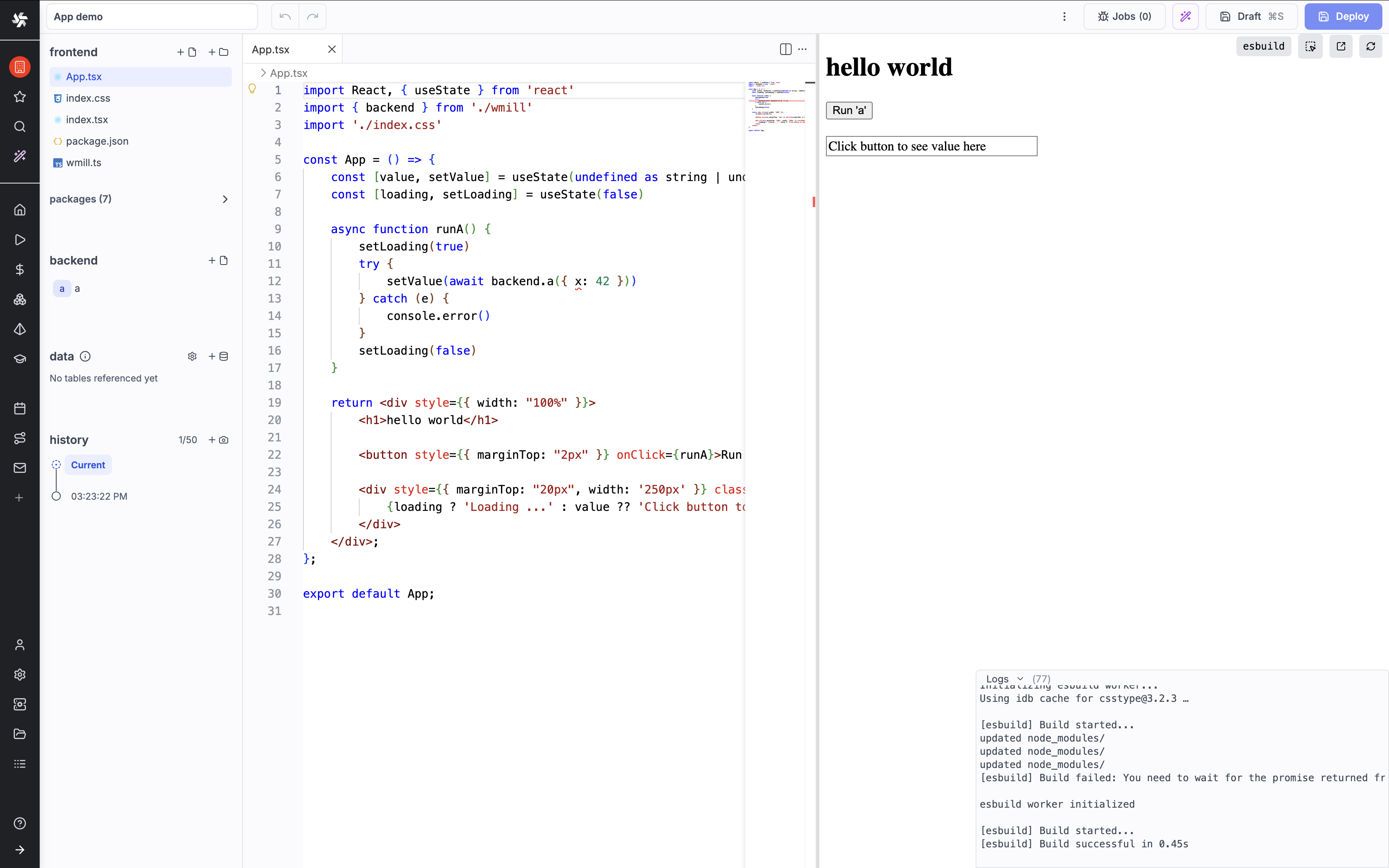
The default App.tsx
The scaffolded App.tsx looks like this:
import React, { useState } from 'react'
import { backend } from './wmill'
import './index.css'

const App = () => {
    const [value, setValue] = useState(undefined as string | undefined)
    const [loading, setLoading] = useState(false)

    async function runA() {
        setLoading(true)
        try {
            setValue(await backend.a({ x: 42 }))
        } catch (e) {
            console.error(e)
        }
        setLoading(false)
    }

    return <div style={{ width: "100%" }}>
        <h1>hello world</h1>

        <button style={{ marginTop: "2px" }} onClick={runA}>Run 'a'</button>

        <div style={{ marginTop: "20px", width: '250px' }} className='myclass'>
            {loading ? 'Loading ...' : value ?? 'Click button to see value here'}
        </div>
    </div>
}

export default App
It imports backend from ./wmill - this is an auto-generated module that provides typed functions to call your backend runnables. Here, clicking the button calls backend.a() which runs the sample runnable a in the backend/ folder.
The default backend runnable
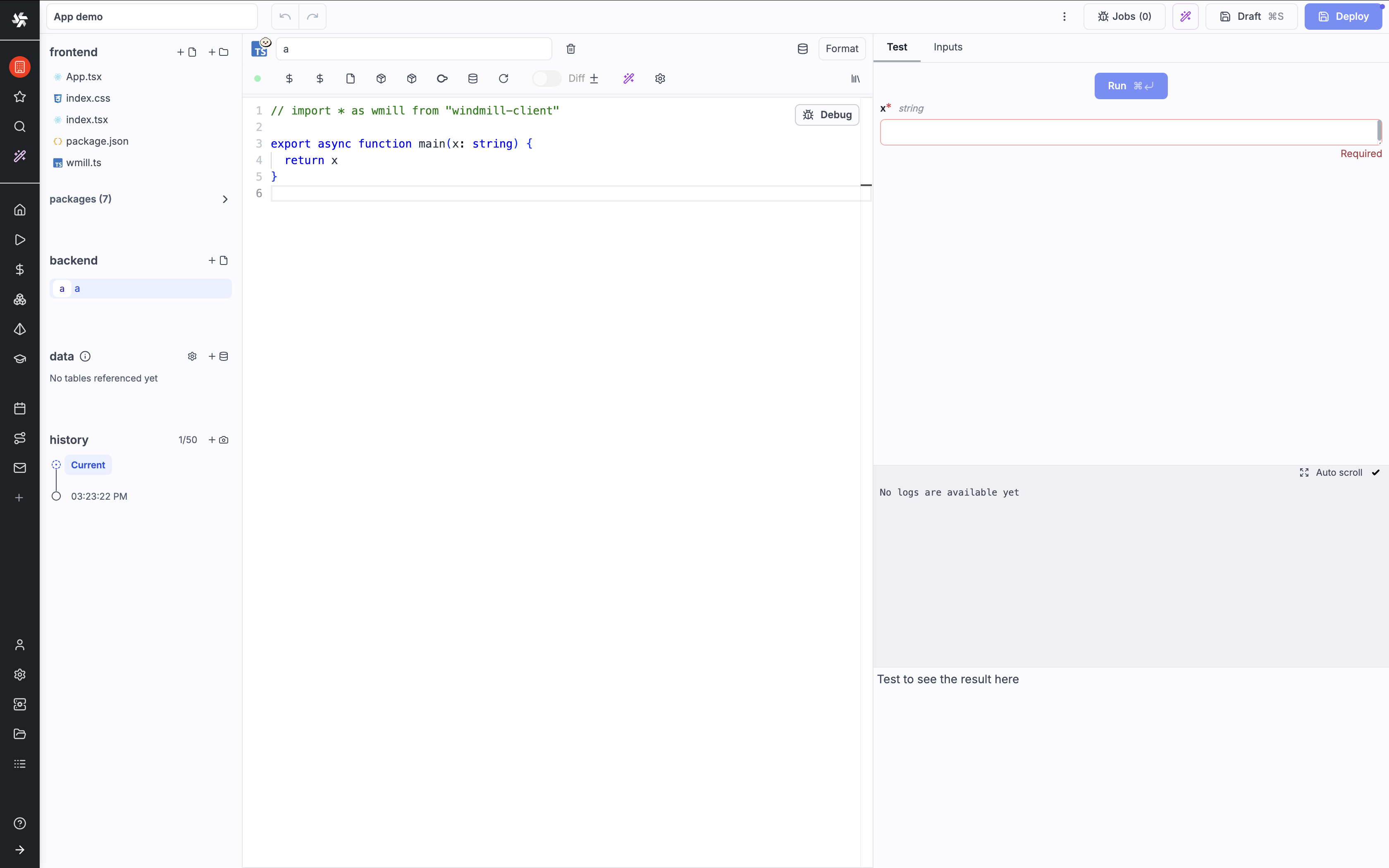
The sample runnable backend/a.ts is a simple TypeScript function:
// import * as wmill from "windmill-client"

export async function main(x: string) {
  return x
}
You can preview your UI by selecting 'App.tsx' to see it in the right pane, or by clicking 'Preview' in the UI editor for a fullscreen view. If you're using the CLI, open http://localhost:4000 in your browser to access the app. When you click the button, it sends a request to the backend and displays the returned result.
How it works
The key concept: backend.a({ x: 42 }) sends the call to a Windmill worker that executes backend/a.ts and returns the result. Your frontend never runs the backend code directly - it goes through Windmill's execution engine via WebSocket, which means you get logging, permissions and error handling for free.
Step 3: Edit and add backend runnables
The scaffolded app comes with one runnable (a). Let's update it and add a second one.
From the UI editor
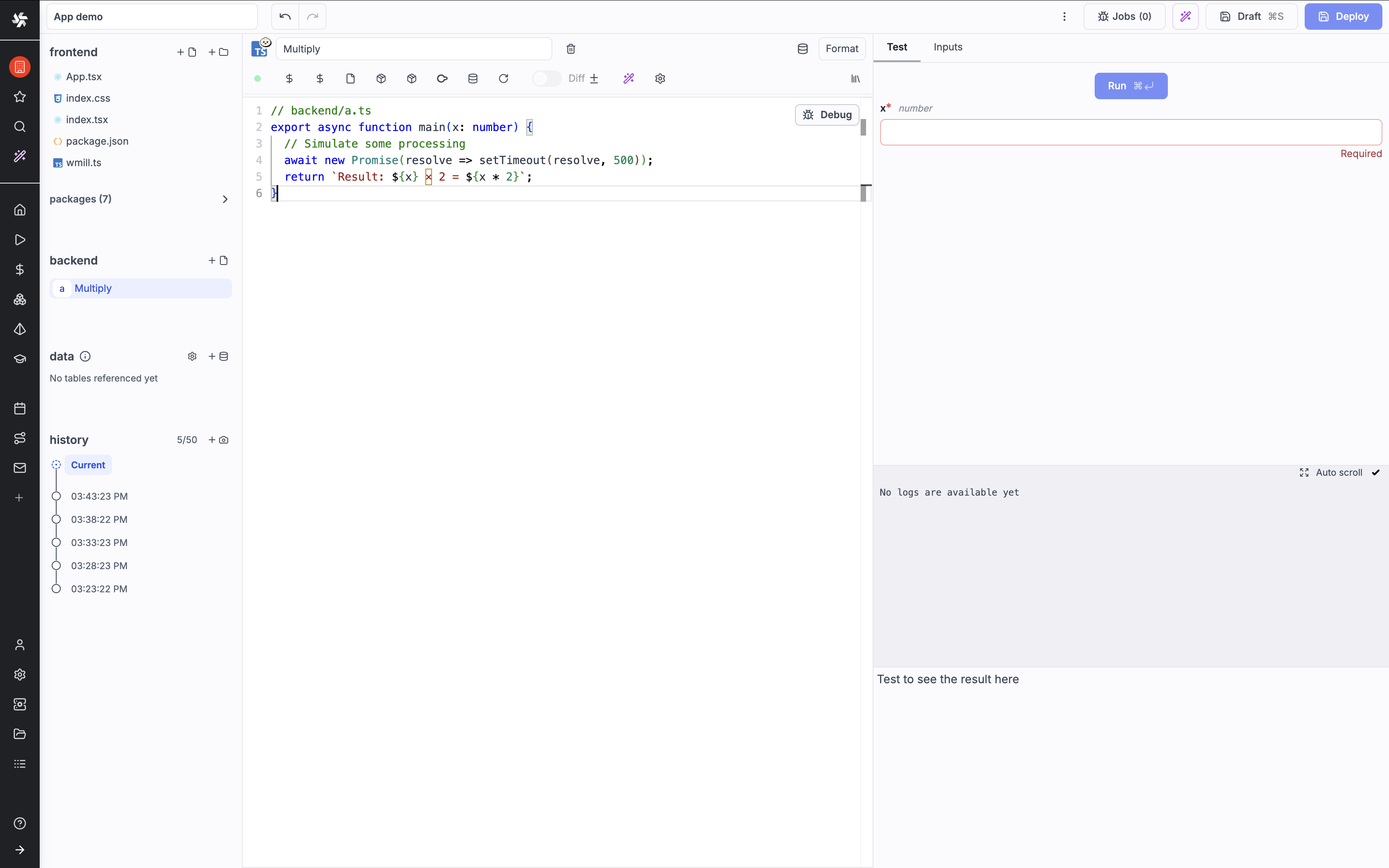
Click on the a runnable in the runnables panel. Give it the summary "Multiply" and replace the code with:
// backend/a.ts
export async function main(x: number) {
  // Simulate some processing
  await new Promise(resolve => setTimeout(resolve, 500));
  return `Result: ${x} × 2 = ${x * 2}`;
}
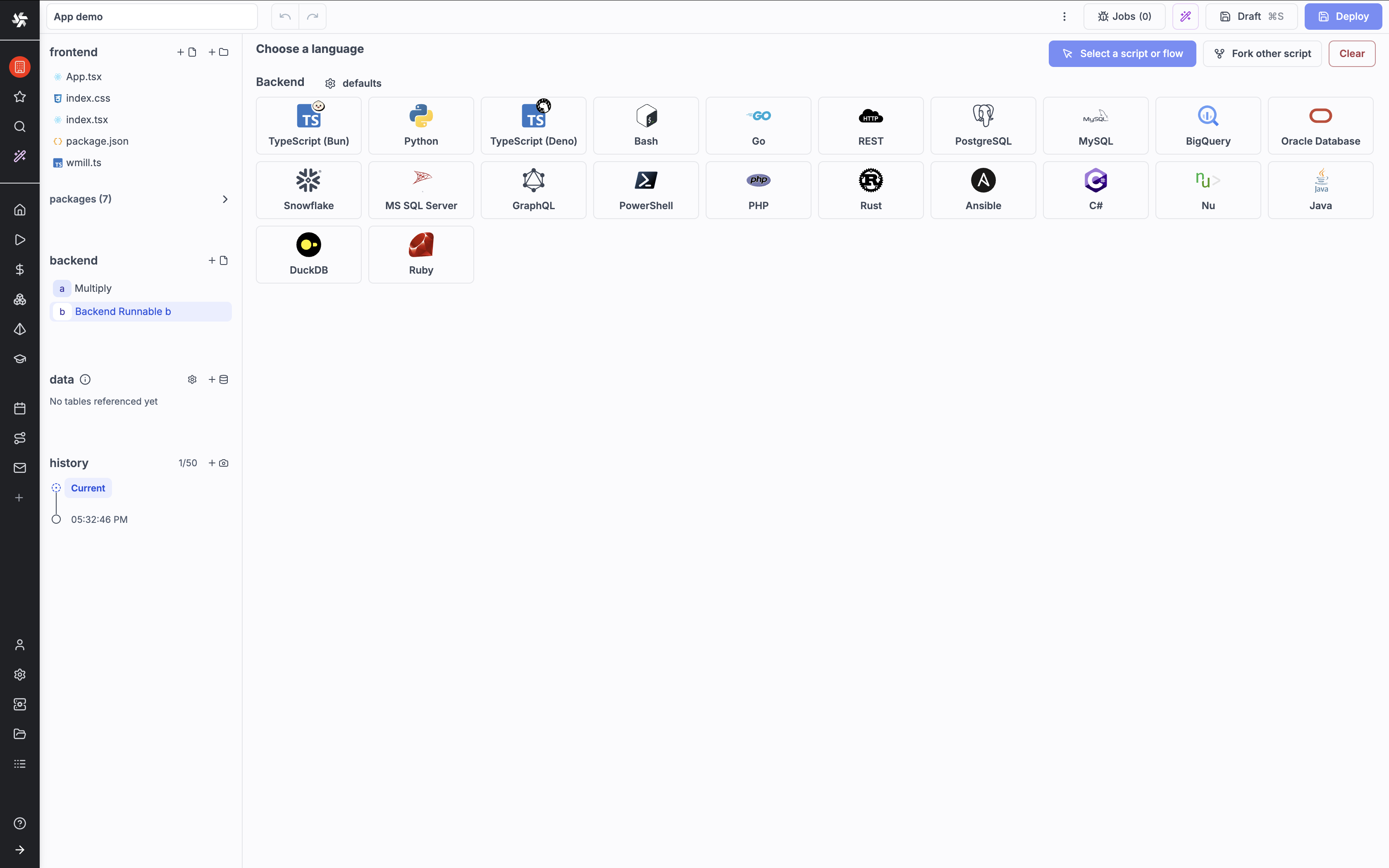
Now add a second runnable - this time in Python as you can mix languages within the same app:
- In the runnables panel on the right, click the
+button - Select Python as the language
- Name it
band give it the summary "Get timestamp"
Paste this code:
# backend/b.py
from datetime import datetime

def main(format: str):
    now = datetime.now()
    if format == "iso":
        return now.isoformat()
    elif format == "locale":
        return now.strftime("%c")
    else:
        return str(now)
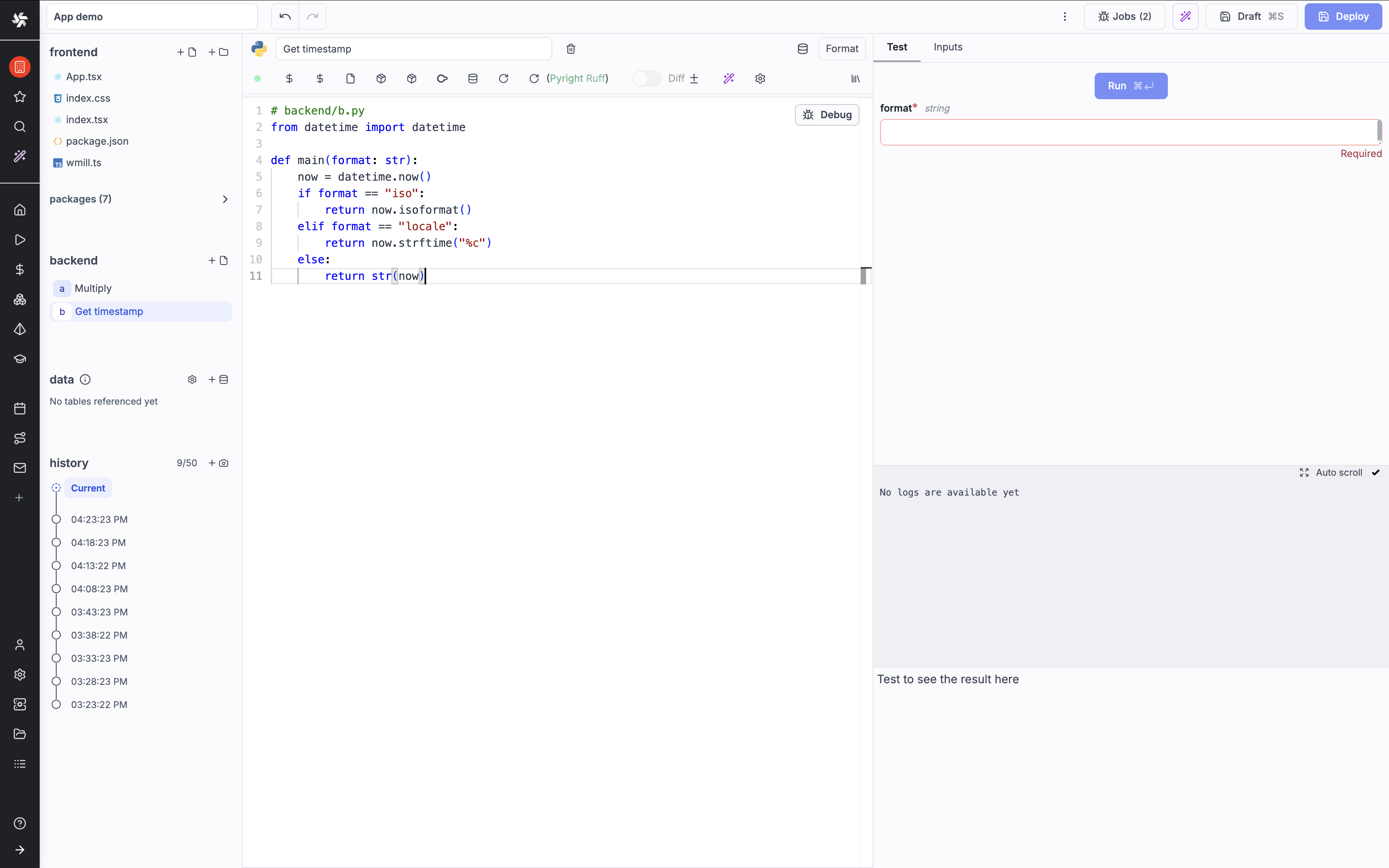
As you can see, the auto-generated UI updated with the new input name (format).
You now have two runnables in different languages: a (TypeScript) doubles a number, b (Python) returns a formatted date. The frontend calls them the exact same way - it doesn't need to know which language runs behind the scenes.
From local files
Alternatively, work directly in backend/:
- Edit
backend/a.tswith the multiply code above - Create
backend/b.pywith the Python code above
The language is auto-detected from the file extension (.ts for TypeScript, .py for Python) and the runnable ID is derived from the filename (a, b).
Step 4: Build the frontend
Now let's update App.tsx to call both runnables. The auto-generated wmill module automatically picks up the new b runnable, so we can call backend.a() and backend.b() right away.
Replace the content of App.tsx with:
import React, { useState } from 'react'
import { backend } from './wmill'
import './index.css'

const App = () => {
    const [valueA, setValueA] = useState<string | undefined>(undefined)
    const [valueB, setValueB] = useState<string | undefined>(undefined)
    const [loadingA, setLoadingA] = useState(false)
    const [loadingB, setLoadingB] = useState(false)
    const [inputNumber, setInputNumber] = useState(42)

    async function runA() {
        setLoadingA(true)
        try {
            setValueA(await backend.a({ x: inputNumber }))
        } catch (e) {
            console.error('Error running a:', e)
        }
        setLoadingA(false)
    }

    async function runB() {
        setLoadingB(true)
        try {
            setValueB(await backend.b({ format: 'locale' }))
        } catch (e) {
            console.error('Error running b:', e)
        }
        setLoadingB(false)
    }

    async function runBoth() {
        setLoadingA(true)
        setLoadingB(true)
        try {
            const [resultA, resultB] = await Promise.all([
                backend.a({ x: inputNumber }),
                backend.b({ format: 'iso' })
            ])
            setValueA(resultA)
            setValueB(resultB)
        } catch (e) {
            console.error('Error running both:', e)
        }
        setLoadingA(false)
        setLoadingB(false)
    }

    return (
        <div className="container">
            <h1>Full-code app demo</h1>
            <p className="subtitle">Calling 2 backend runnables</p>

            <div className="input-section">
                <label>
                    Input number:
                    <input
                        type="number"
                        value={inputNumber}
                        onChange={(e) => setInputNumber(Number(e.target.value))}
                    />
                </label>
            </div>

            <div className="buttons">
                <button onClick={runA} disabled={loadingA}>
                    {loadingA ? 'Running...' : 'Multiply number'}
                </button>
                <button onClick={runB} disabled={loadingB}>
                    {loadingB ? 'Running...' : 'Get timestamp'}
                </button>
                <button onClick={runBoth} disabled={loadingA || loadingB} className="primary">
                    Run both
                </button>
            </div>

            <div className="results">
                <div className="result-card">
                    <h3>Multiply (TypeScript)</h3>
                    <div className="result-value">
                        {loadingA ? 'Loading...' : valueA ?? 'Click a button to see result'}
                    </div>
                </div>

                <div className="result-card">
                    <h3>Timestamp (Python)</h3>
                    <div className="result-value">
                        {loadingB ? 'Loading...' : valueB ?? 'Click a button to see result'}
                    </div>
                </div>
            </div>
        </div>
    )
}

export default App
A few things to notice:
- Each button calls a different backend runnable (
backend.a()orbackend.b()) - Run both uses
Promise.allto call both runnables in parallel - each one runs as a separate Windmill job - The
formatparameter onbackend.b()is passed as an argument, just likexonbackend.a() aruns TypeScript on a Bun worker,bruns Python - the frontend doesn't need to care
Update the styles
Replace index.css to give the app a cleaner look:
.container {
    max-width: 600px;
    margin: 0 auto;
    padding: 20px;
    font-family: -apple-system, BlinkMacSystemFont, 'Segoe UI', Roboto, sans-serif;
}

h1 {
    margin-bottom: 5px;
    color: #333;
}

.subtitle {
    color: #666;
    margin-top: 0;
    margin-bottom: 24px;
}

.input-section {
    margin-bottom: 20px;
}

.input-section label {
    display: flex;
    align-items: center;
    gap: 10px;
    font-weight: 500;
}

.input-section input {
    padding: 8px 12px;
    border: 1px solid #ddd;
    border-radius: 6px;
    font-size: 16px;
    width: 100px;
}

.buttons {
    display: flex;
    gap: 10px;
    flex-wrap: wrap;
    margin-bottom: 24px;
}

button {
    padding: 10px 18px;
    border: 1px solid #ddd;
    border-radius: 6px;
    background: white;
    cursor: pointer;
    font-size: 14px;
    transition: all 0.2s;
}

button:hover:not(:disabled) {
    background: #f5f5f5;
    border-color: #ccc;
}

button:disabled {
    opacity: 0.6;
    cursor: not-allowed;
}

button.primary {
    background: #3b82f6;
    color: white;
    border-color: #3b82f6;
}

button.primary:hover:not(:disabled) {
    background: #2563eb;
}

.results {
    display: grid;
    gap: 16px;
}

.result-card {
    border: 1px solid #e5e7eb;
    border-radius: 8px;
    padding: 16px;
    background: #fafafa;
}

.result-card h3 {
    margin: 0 0 10px 0;
    font-size: 14px;
    color: #666;
    text-transform: uppercase;
    letter-spacing: 0.5px;
}

.result-value {
    font-size: 16px;
    color: #333;
    font-family: 'Monaco', 'Menlo', monospace;
    word-break: break-all;
}
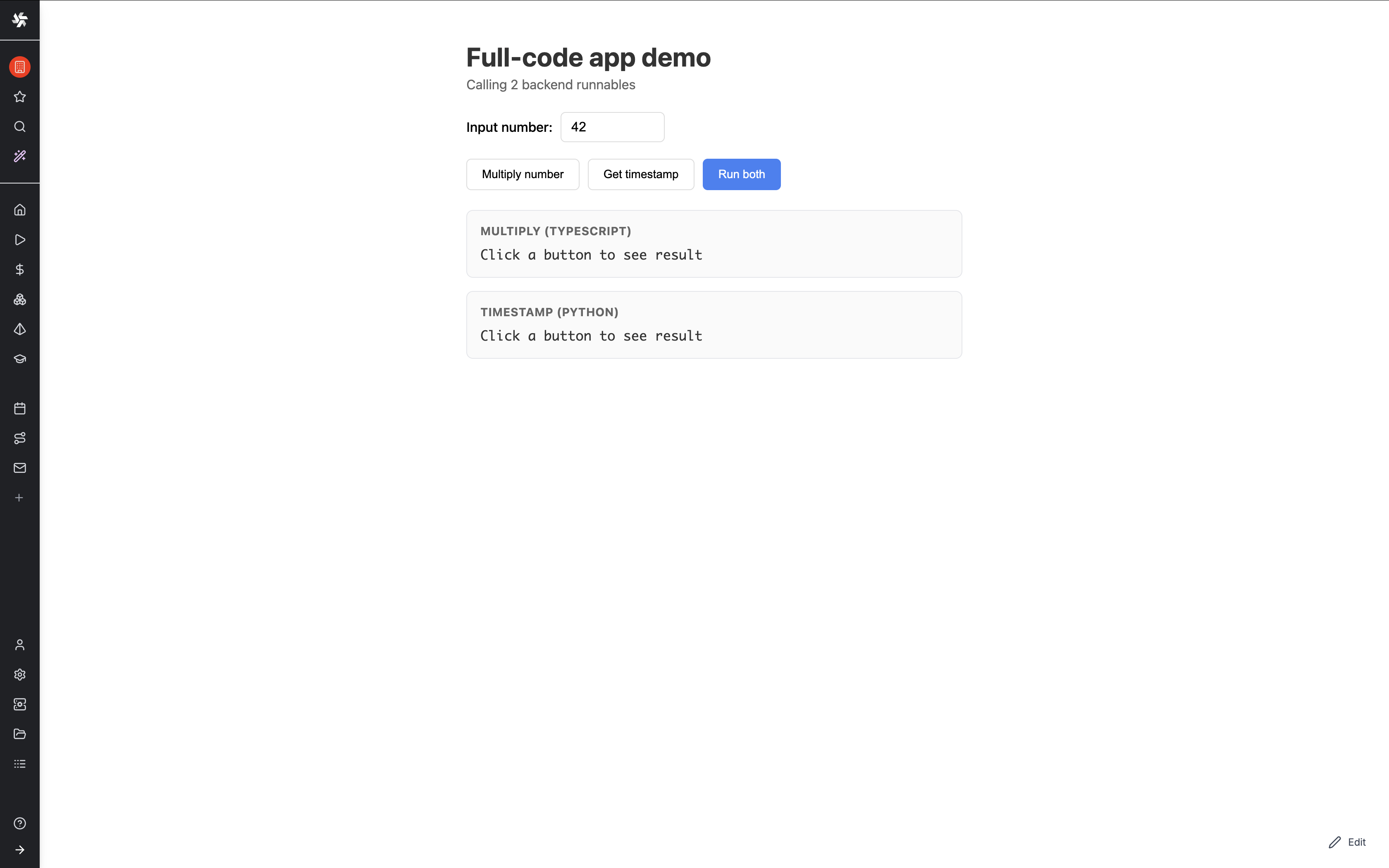
See the preview in the right part of the screen of App.tsx (or click 'Preview' in the UI editor to see it in full screen, or check http://localhost:4000 if using the CLI) to see the result. Try clicking each button individually, then "Run both" to see parallel execution.
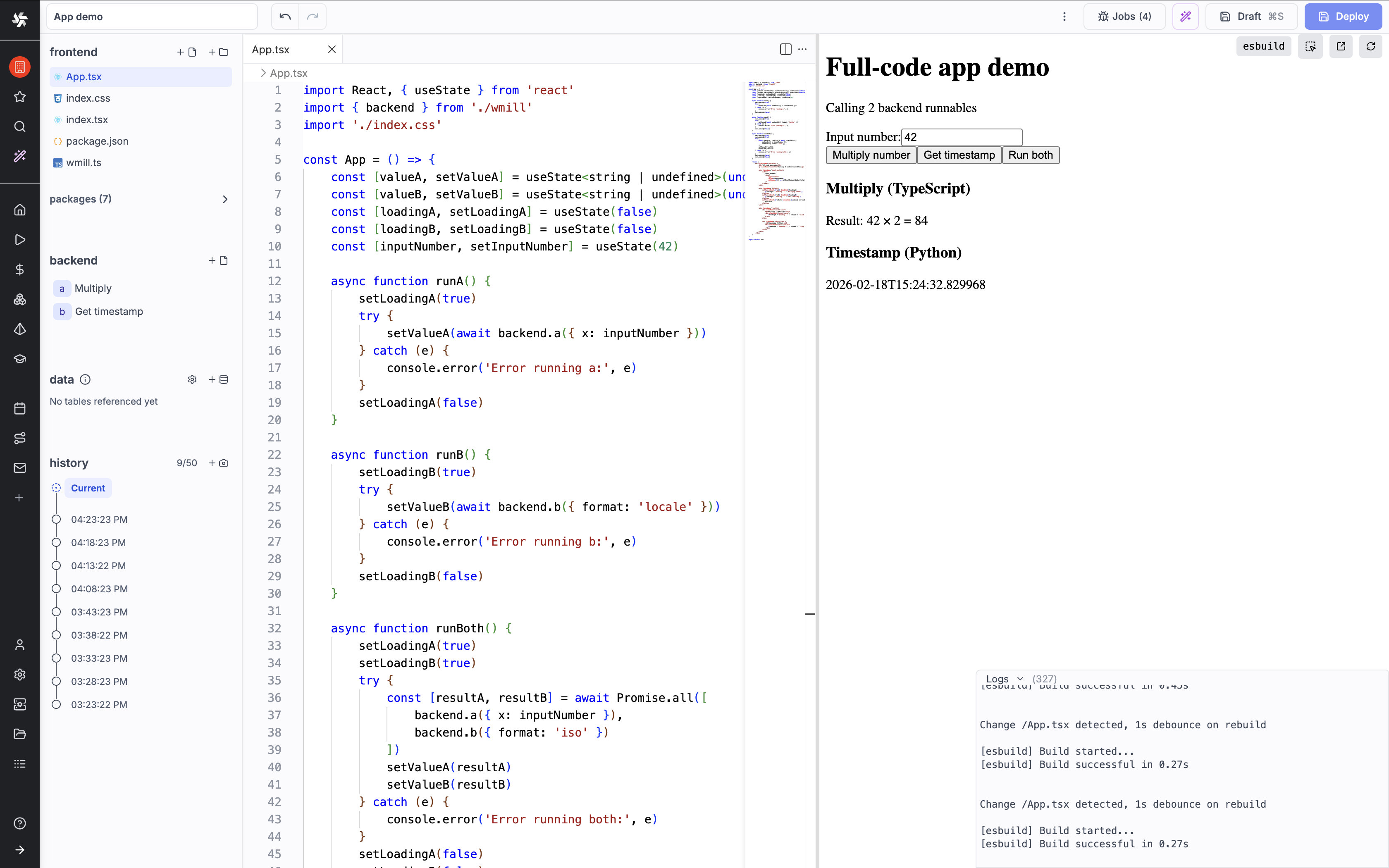
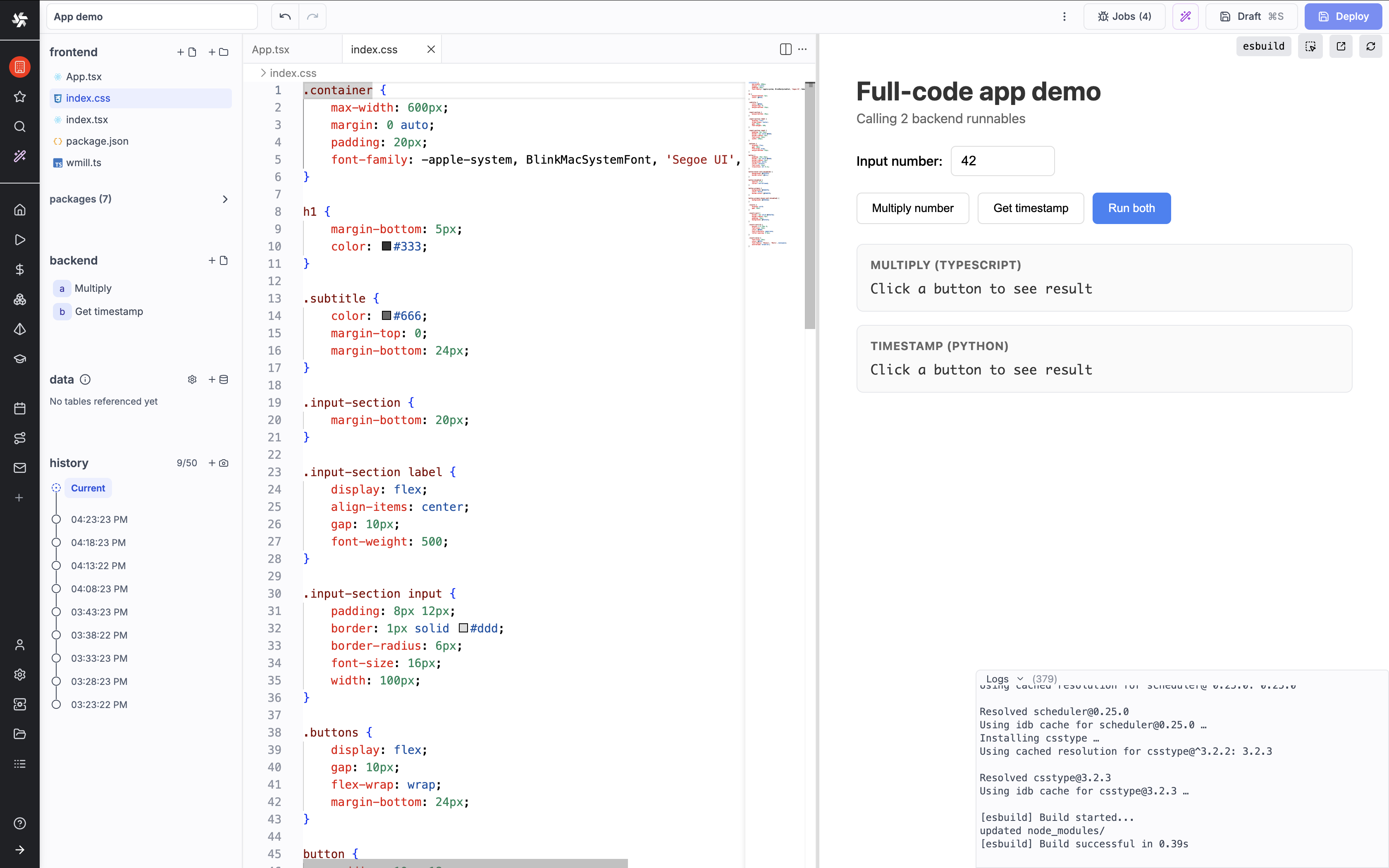
If you chose Svelte 5 instead of React, the same pattern applies. Import backend from ./wmill and use Svelte's $state and $effect for reactivity. See the frontend reference for Svelte examples.
How backend calls work
Every call to backend.a() or backend.b() is a real Windmill job execution:
backend.xxx(args)- calls a runnable and waits for the result (synchronous)backendAsync.xxx(args)- starts a runnable and returns a job ID immediately (for long-running tasks)waitJob(jobId)- waits for an async job to complete
Step 5: Use a data table for persistence
So far our runnables compute values on the fly. Full-code apps can also read and write to Windmill data tables - a built-in storage layer.
Set up a database
First, make sure a database is configured in your workspace. Go to Workspace settings > Data Tables and set up a database connection (or use the Custom instance database if available).
Add a table to your app
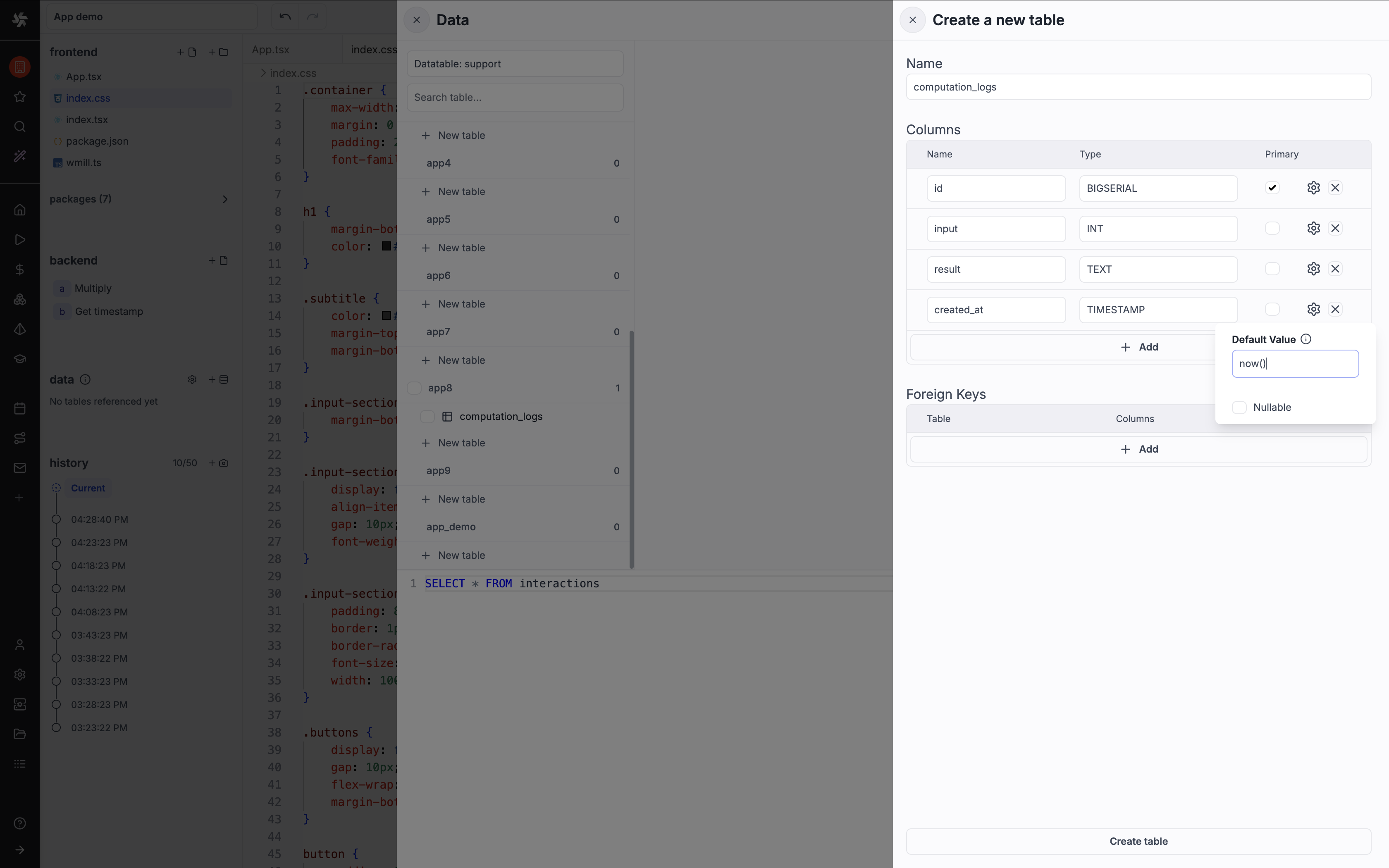
In the raw app editor, open the Data section on the left panel and click the + button. You can either pick an existing table (public or from other apps) or create a new one for your app.
Let's create a new table:
- Click
+in the Data section - Select Create new table
- Name it
computation_logs - Define the columns:
id—BIGSERIAL(primary key, added by default)input—INTresult—TEXTcreated_at—TIMESTAMP, defaultnow()
- Click Create table
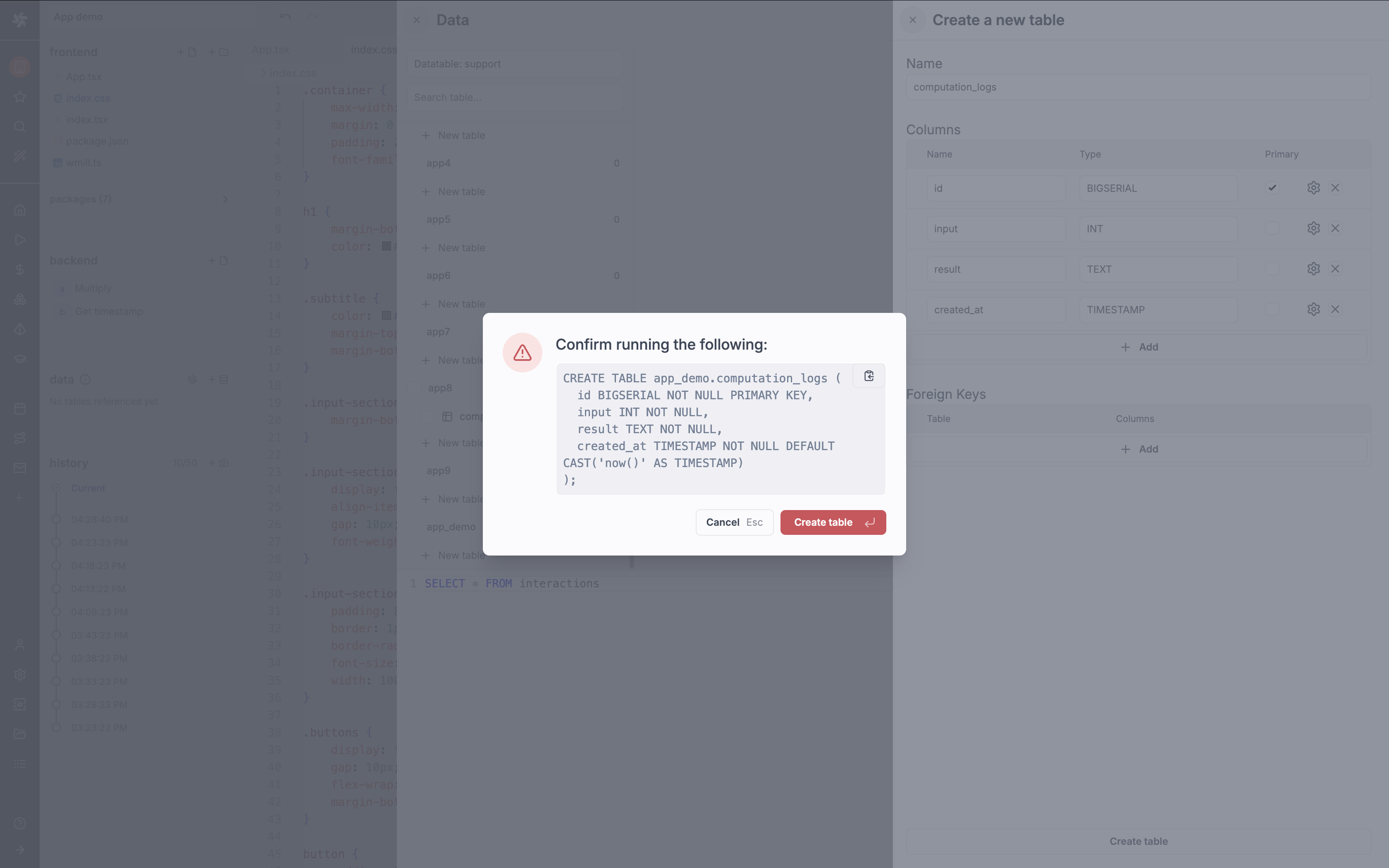
The table is now whitelisted for your app. You can view its schema and data from the Data section.
Add a SQL runnable
Now create a backend runnable that queries this table. In the runnables panel, click + and select PostgreSQL as the language. Name it get_logs.
For the database resource, pick the same resource as the one configured in your workspace Data Tables settings.
-- backend/get_logs.pg.sql
SELECT * FROM app_demo.computation_logs ORDER BY created_at DESC LIMIT 10;
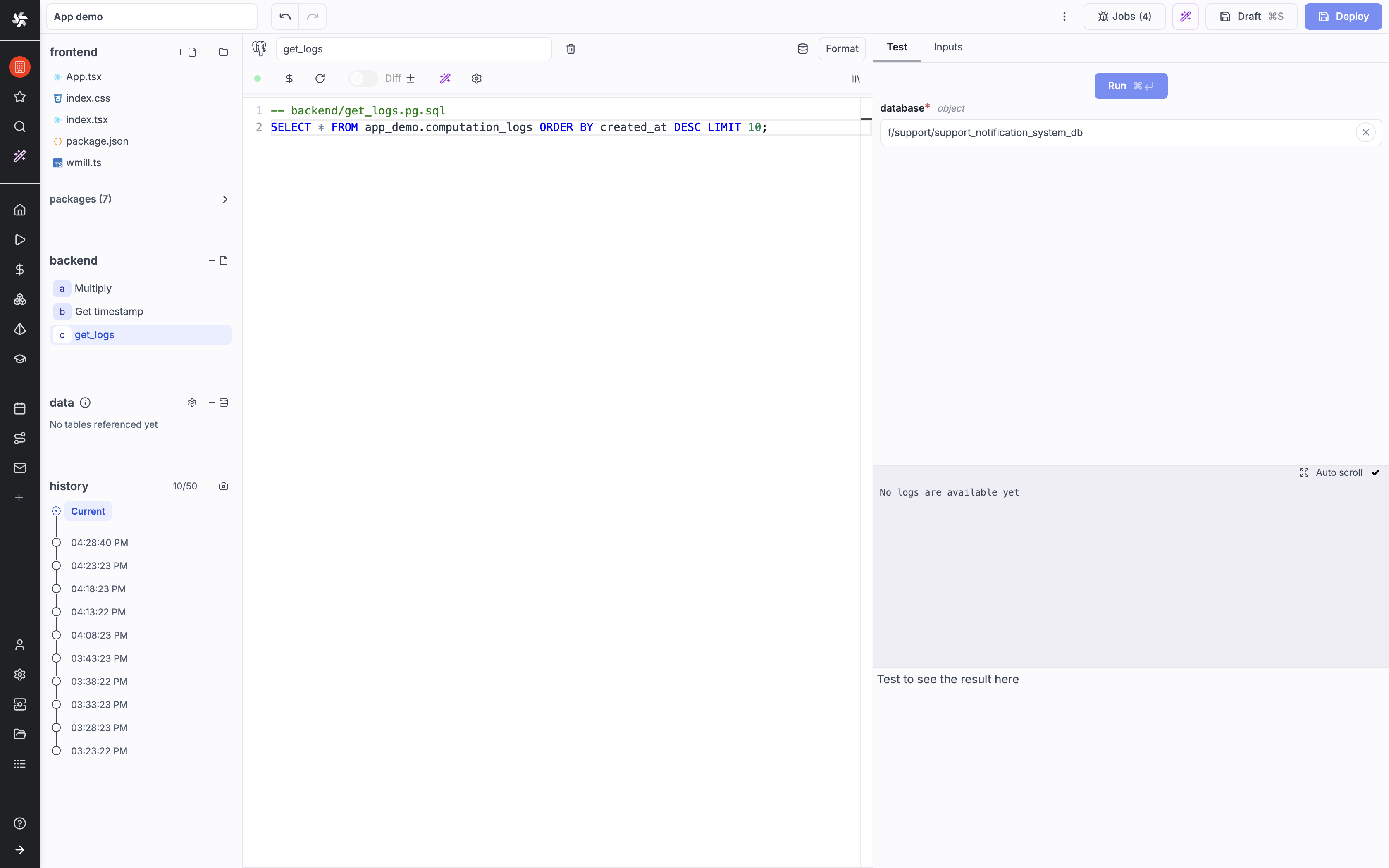
From the frontend, call it like any other runnable:
const logs = await backend.get_logs();
The frontend code doesn't need to know whether a runnable is TypeScript, Python or SQL - the wmill module handles them all the same way.
From local files, the .pg.sql extension tells Windmill to run the script as a PostgreSQL query. Other SQL dialects are supported too (.my.sql for MySQL, .bq.sql for BigQuery, etc.). See the backend runnables reference for the full list.
Step 6: Deploy
From the UI editor
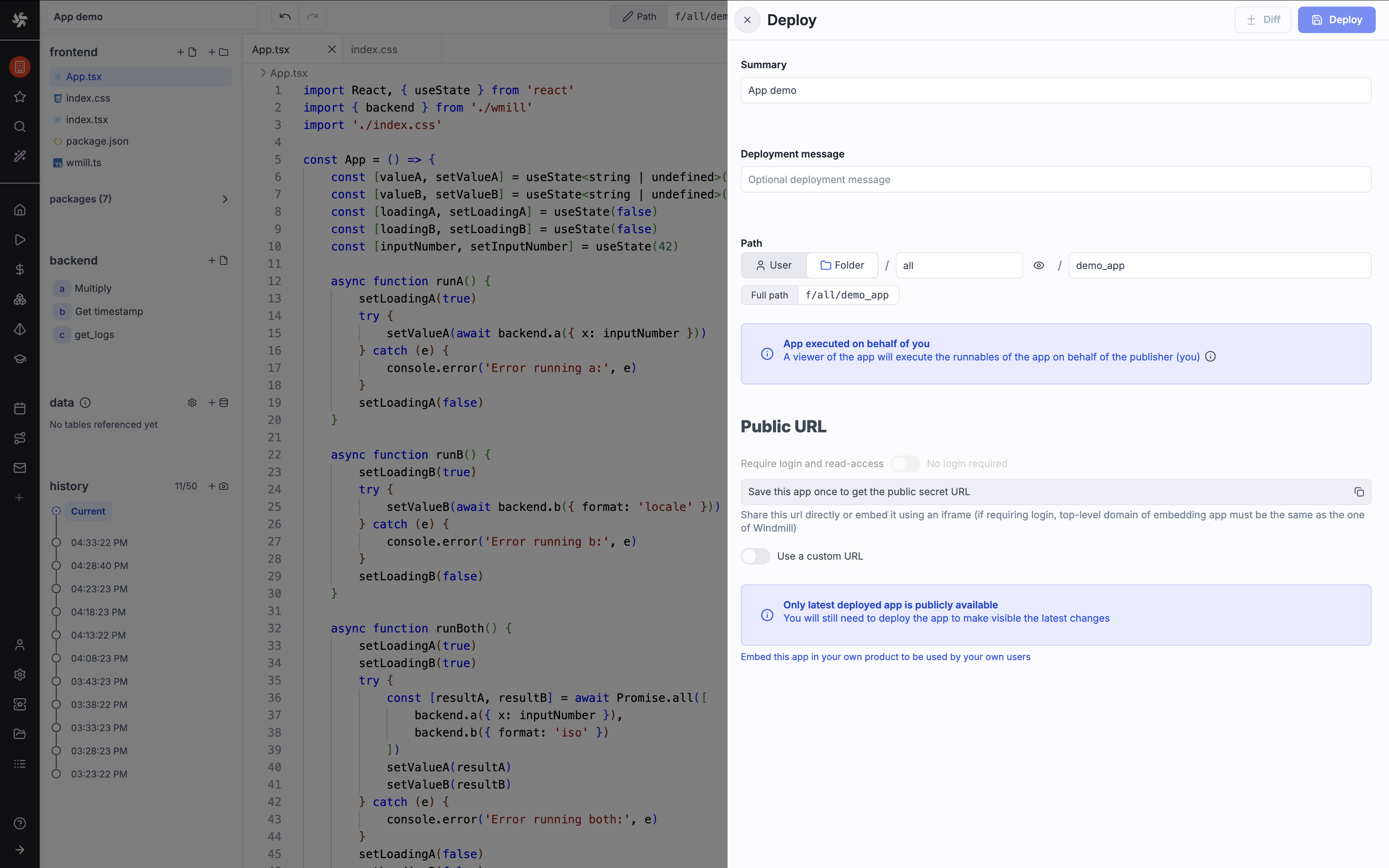
Click the Deploy button in the toolbar. Each deployment creates a new version of your app.
From the CLI
Generate lock files for your runnables and push:
wmill app generate-locks
wmill sync push
Make it public
To make the app accessible without login, add public: true to raw_app.yaml:
summary: "Full-code app demo"
public: true
Admins can also set a custom URL path:
custom_path: "my-demo"
The app is then accessible at https://<instance>/apps/custom/my-demo.
Runnable configuration
So far we've used code-only runnables (just a file in backend/). For more control, you can add a .yaml config file alongside the code to pre-fill inputs:
# backend/a.yaml
type: inline
fields:
  x:
    type: static
    value: 100
This pre-fills the x parameter so the frontend doesn't need to pass it. You can also reference existing workspace scripts or flows instead of writing inline code:
# backend/send_notification.yaml
type: script
path: f/production/send_slack_notification
Next steps
You now have a working full-code app with a custom React frontend calling multiple backend runnables. From here you can:
- Add backend runnables in any language (Python, SQL, Go, etc.)
- Style your app with CSS, Tailwind or any React library
- Set up CI/CD with git sync for team workflows
- Use Windmill AI to generate apps from prompts